
Download Seekee for PC
We know tons of you want to use the Seekee app on your computer. It makes AI creation and content searching way easier on a bigger screen. Right now, Seekee doesn't have an official, separate PC version, but you can run the Seekee App on your Windows or Mac computer using the method below!
How to Use the Seekee App for PC?
To get the Seekee App running on your computer, you'll need to install a program called BlueStacks. BlueStacks is a popular Android emulator that lets your computer run Android apps just like your phone.
Follow these simple steps:
Step 1: Download and Install BlueStacks
1. Open your computer's browser.
2. Type "BlueStacks" into the search bar, or go straight to the official BlueStacks website.

3. Find the download button and save the BlueStacks App Player installation file to your computer (it works for both Windows and macOS).
4. Find the file you downloaded, double-click it, and follow the prompts to complete the BlueStacks installation.
Step 2: Set Up BlueStacks and Log into Google Play
1. Once it's installed, open the BlueStacks software.
2. BlueStacks will ask you to log in with your Google account (that's your Gmail address and password) to connect to the Google Play Store.
3. Just like you would on a new phone, enter your Google account details to log in.
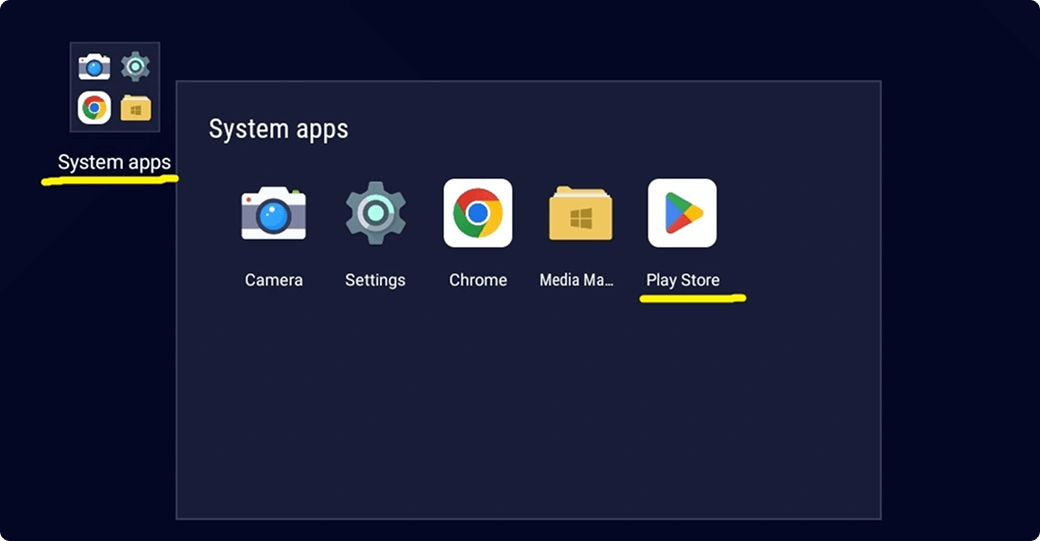
Step 3: Search for and Download Seekee App
1. After successfully logging in, you'll see the Google Play Store app icon on the BlueStacks interface. Tap to open it.
2. In the Play Store search bar, type: Seekee - AI Search & Assistant.
3. Just like you would on a new phone, enter your Google account details to log in.
4. Hit the "Install" button, and BlueStacks will start downloading and installing the Seekee App into your computer's simulated environment.
Step 4: Start Using Seekee on Your Computer
1. Once installation is complete, you can find the Seekee App icon on BlueStacks' home screen or under "My Apps."
2. Double-click the icon to open Seekee, and boom! You can now use all of Seekee's powerful features, such as AI writing, AI image generation, all-web search, and more on your computer's big screen!

Why Use Seekee on PC?
Using Seekee on PC gives you a much better experience:
· More AI Creation: It's easier to type text and the preview is clearer when you're doing AI text creation or AI image generation on a large screen.
· Better Multitasking: You can use Seekee's AI tools at the same time as other PC software, boosting your efficiency.
· Easy File Handling: It's simple to save files from Seekee (like AI reports or converted PDFs) directly to your local computer folders.
The Seekee team is working hard to give you an even better experience! We are actively developing the official Seekee for PC version, so keep following Seekee's official channels to get the latest updates ASAP!
© 2025 Seekee All rights reserved